Core Concepts
3. Pile Profiles
A PileProfile is a ScriptableObject that controls every aspect of pile generation.
Creating a Profile
Assets > Create > PileGen > Pile Profile
Or use a preset:
- •
Assets > Create > PileGen > Rock Pile Profile - •
Assets > Create > PileGen > Book Stack Profile - •
Assets > Create > PileGen > Wood Pile Profile - •
Assets > Create > PileGen > Debris Pile Profile
Profile Fields
| Field | Description |
|---|---|
| Pile Name | Display name shown in the inspector |
| Poly Art Shading | Toggle between Standard (Triplanar) and Biome (Palette) shading |
| Material Override | Global fallback material for Standard Mode |
| Default Style (Biome) | Global fallback biome/palette for Biome Mode |
| Shape Rules | Array of shape definitions (what objects to generate) |
| Layers | List of layer rules (how many, what scale, rotation) |
| Placement Rules | Radius, overlap, ground contact settings |
| Distribution Curves | Density, height, and scale falloff curves |
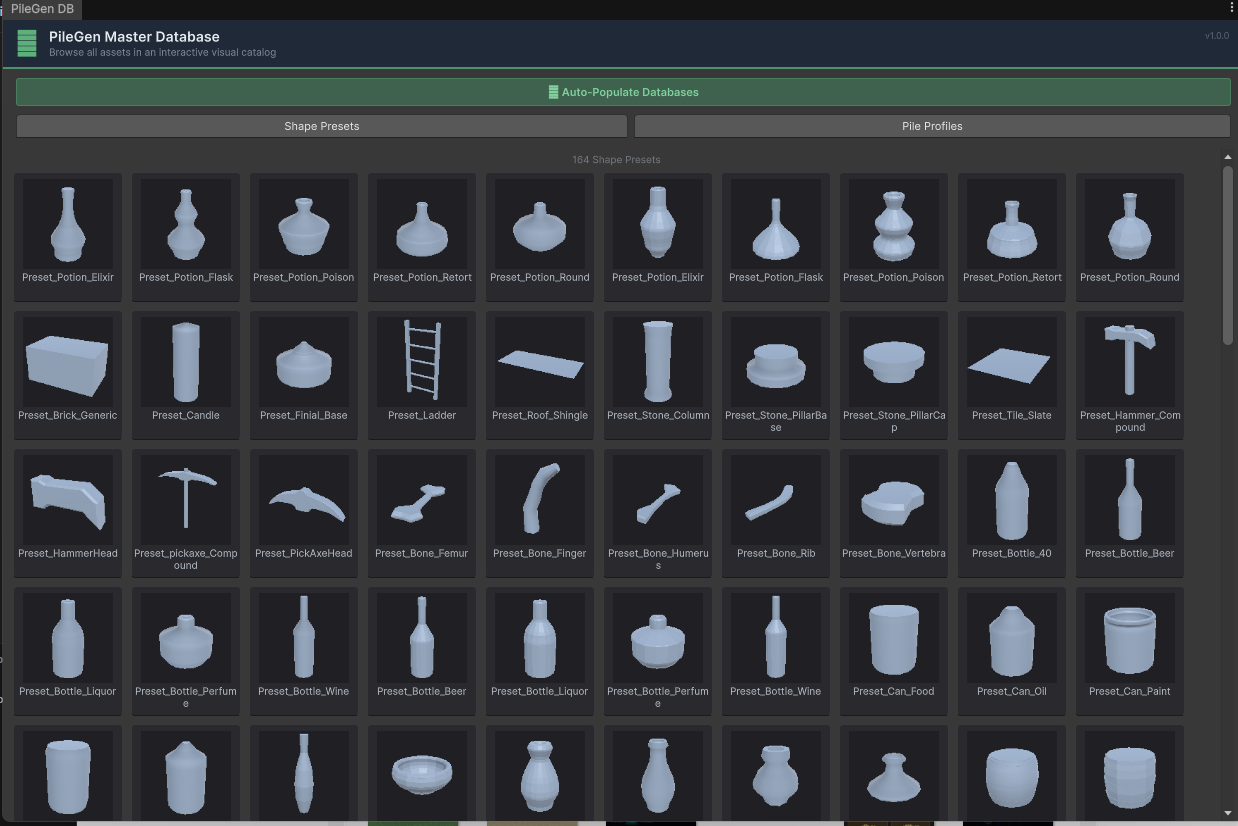 The Shape Browser showing the full Shape Rule list with thumbnails, type badges, and quick-add dropdown.
4. Shape Rules
A Shape Rule defines a single type of object that can appear in the pile.
Base Primitives
| Primitive | Description | Best For |
|---|---|---|
| Cube | 6-faced box, configurable subdivisions | Crates, books, bricks |
| Sphere | UV sphere | Balls, rounded objects |
| Icosahedron | Subdivided icosahedron | Rocks, debris, organic shapes |
| Rock | Convex hull with Voronoi noise | Natural rocks, boulders |
| Cylinder | Capped cylinder, supports wall thickness | Logs, pipes, cans |
| Torus | Donut ring | Rings, wreaths, donuts |
| Pipe | Hollow cylinder | Tubes, hollow pipes |
| Plane | Flat quad | Cards, sheets, fabric |
| Extrude | 2D silhouette extruded along a Bézier path | Planks, curved beams, custom shapes |
| Lathe | Revolution surface from profile curve | Bottles, vases, jars |
| Compound | Multi-part assembled shape | Crates, chairs, tables |
| Prefab | Any external model/prefab | Custom meshes, imported models |
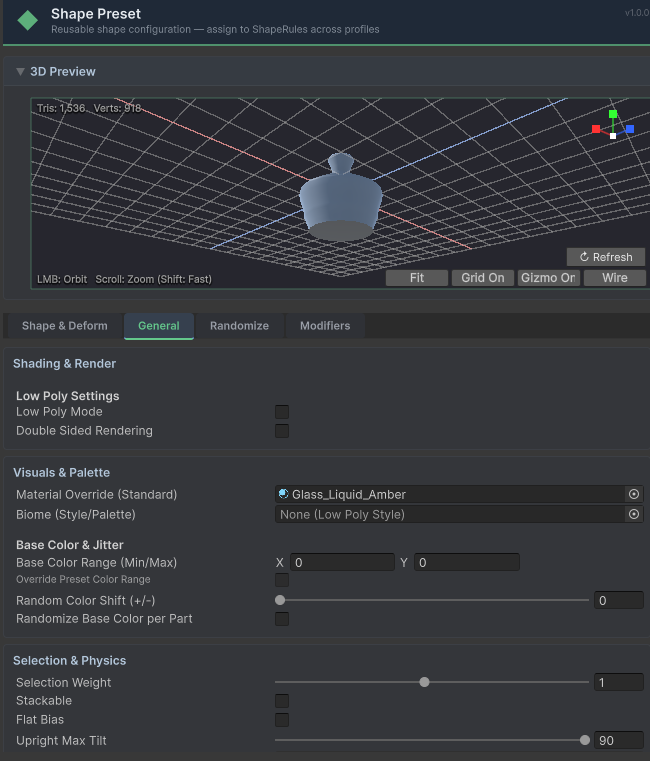 The Shape Rule inspector showing primitive selection, size settings, deformation options, and material/biome assignment.
Primitive-Specific Options
Each primitive exposes its own resolution and topology controls:
| Primitive | Key Options |
|---|---|
| Cube | Subdivisions (1–5 per face) |
| Cylinder | Sides, Height Segments, Wall Thickness, Cap Top/Bottom, Hollow Bottom |
| Sphere | Subdivision Level (0–3) |
| Icosahedron | Subdivision Level (0–3) |
| Plane | Subdivisions (1–6) |
| Torus | Tube Radius, Radial/Tube Segments |
| Pipe | Sides, Wall Thickness, Cap Top/Bottom |
Size & Pivot
- •Size Min/Max — Random range for dimensions (X, Y, Z).
- •Uniform Scale — Forces X, Y, and Z to scale together.
- •Pivot Y Offset — Shift the vertical pivot. Use -0.5 for bottom-aligned, 0.5 for top-aligned.
- •Native Scale (Prefabs) — Uses the prefab's original export scale instead of normalizing.
- •Arc Degrees — For cylindrical shapes: 360 = full shape, 180 = half shape.
Deformation Settings
Applied to the CPU mesh after generation:
| Setting | Description |
|---|---|
| Vertex Noise | Random displacement of vertices (organic look) |
| Noise Frequency | Scale of the noise pattern |
| Bend Amount | Curve the mesh along one axis |
| Flatten | Squash the mesh vertically |
| Bevel | Inset faces with multi-segment rounding |
| Chip Amount | Remove random chunks from edges |
| Chip Seed Offset | Vary which edges get chipped |
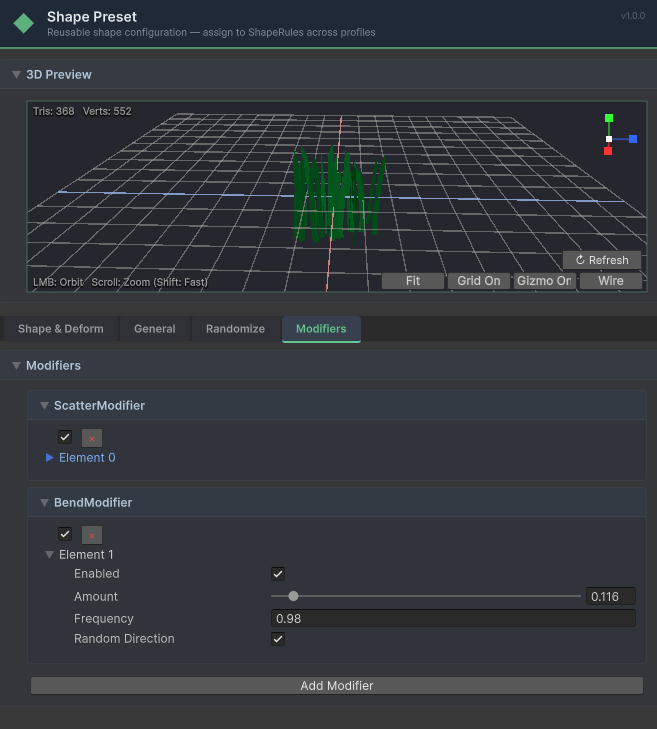 The Shape Modifiers section with per-shape deformation variance controls.
Deformation Variance
Each deformation parameter has a Min/Max range. PileGen picks a different random value within that range for every generated piece, giving natural variation without manual overrides.
 The Randomize panel showing per-parameter variance ranges for deformation.
Behavior Flags
| Flag | Description |
|---|---|
| Flat Bias | Reduce rotation variance — piece stays mostly upright |
| Stackable | Piece can be placed on top of others |
Per-Shape Material / Biome
Each shape can override the profile's default material or biome style. Leave empty to inherit the profile's global setting.
Weight
Controls how likely this shape is to be picked relative to others in the profile. Higher weight = more frequent.
5. Layers
Layers control how many pieces are placed and how they're arranged. A typical pile has 2–3 layers:
| Layer | Typical Use |
|---|---|
| Base | Large pieces at the bottom, high count |
| Mid | Medium pieces filling gaps |
| Top | Small accent pieces on top |
Layer Settings
| Field | Description |
|---|---|
| Layer Name | Display label |
| Count | Number of pieces to place |
| Scale Multiplier | Min/max scale range for this layer |
| Rotation Variance | How much random rotation (0 = upright, 1 = chaotic) |
| Vertical Jitter | Random Y offset |
| Surface Alignment | How much pieces align to the ground normal (0–1) |
| Allowed Shape Indices | Which shapes can appear in this layer (empty = all) |
Managing Layers
In the Pile Profile inspector:
- •Click + Add Layer to add a new layer
- •Click × to remove a layer
- •Use ↑ ↓ arrows to reorder layers
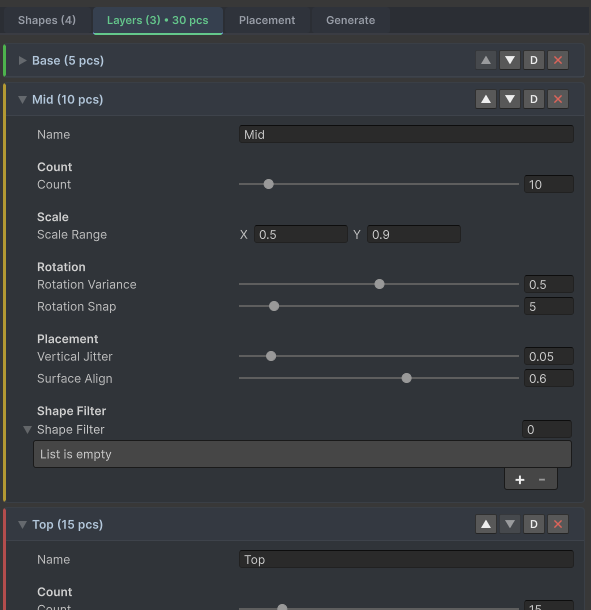 The Layers tab showing Base and Mid layers with count, scale, rotation, and placement settings.
6. Placement Rules
Controls where pieces are placed within the pile's footprint.
Footprint Shape
| Shape | Description |
|---|---|
| Circle | Standard circular pile radius |
| Rectangle | Rectangular footprint defined by X and Z dimensions |
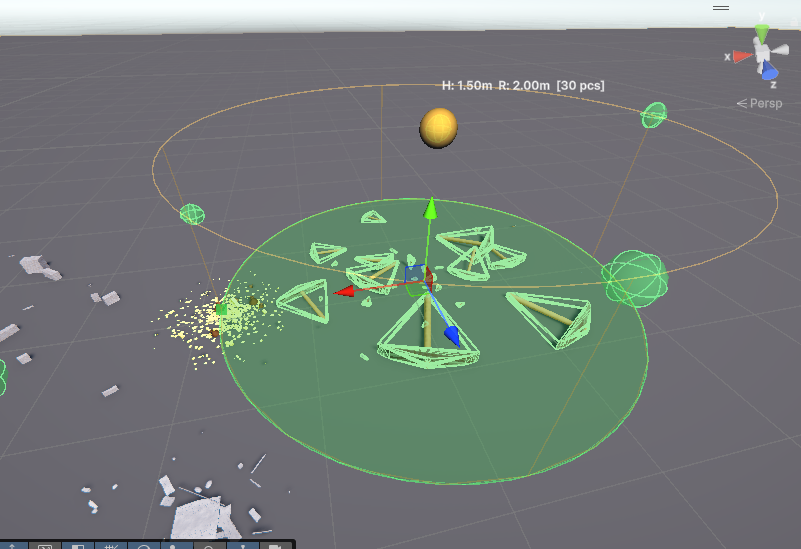 Scene view showing the circular pile footprint gizmo with radius indicator.
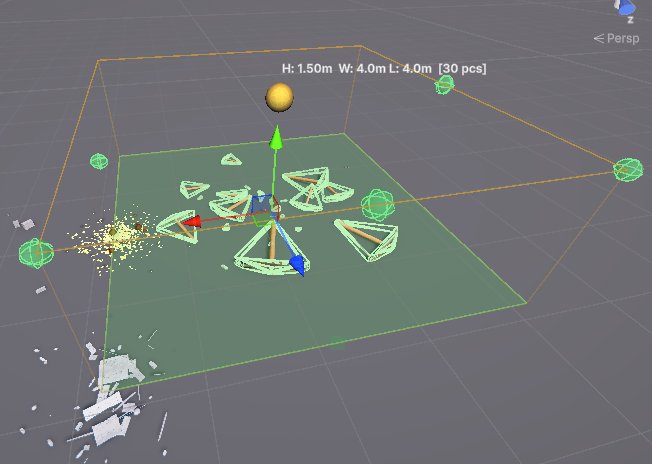 Scene view showing the rectangular pile footprint gizmo with X/Z size handles.
Footprint Options
| Field | Description |
|---|---|
| Radius | Pile radius in world units (Circle mode) |
| Rectangle Size | X and Z extents in world units (Rectangle mode) |
| Max Placement Retries | Attempts per piece before giving up |
| Center Heavy | Bias placement toward the center |
| Edge Heavy | Bias placement toward the edges |
Ground Contact
| Field | Description |
|---|---|
| Sink Depth | How far pieces sink into the ground |
| Prevent Ground Penetration | Adjust height so corners don't clip through |
| Precise Ground Check | Sample multiple points for accurate ground height |
| Slope Limit | Maximum slope angle (degrees) |
| Slope Slide Strength | How much pieces slide downhill on slopes |
| Raycast Height | How high above to start ground raycasts |
| Surface Mask | Layer mask for ground detection |
Overlap
| Field | Description |
|---|---|
| Overlap Tolerance | How much overlap is allowed (0 = none, 1 = full) |
| Use OBB Collision | Use oriented bounding boxes for precise overlap checks |
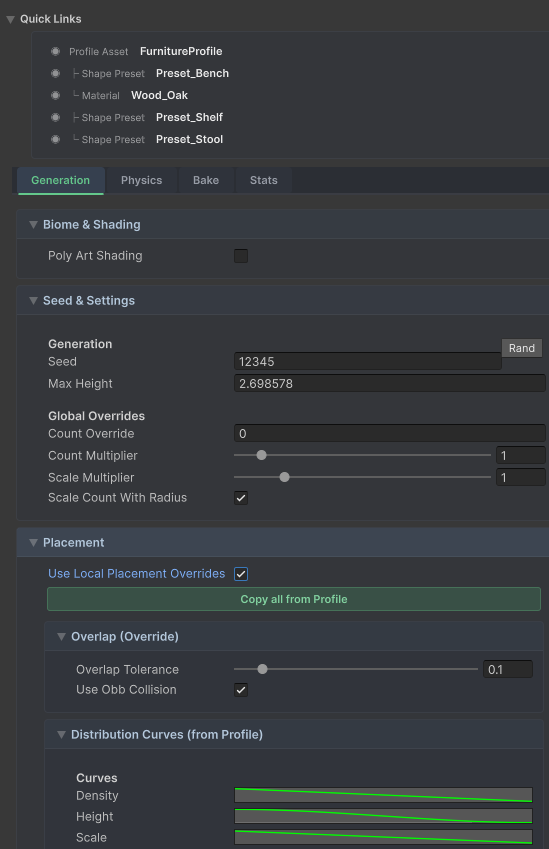 The Placement overrides panel showing footprint shape, radius, ground contact, and overlap controls.
Local Placement Overrides
On the Generator component, toggle Use Local Placement Overrides to take full control of every placement setting directly on the Generator object, independent of the profile's defaults. A Copy all from Profile button pre-fills all values from the currently assigned profile.
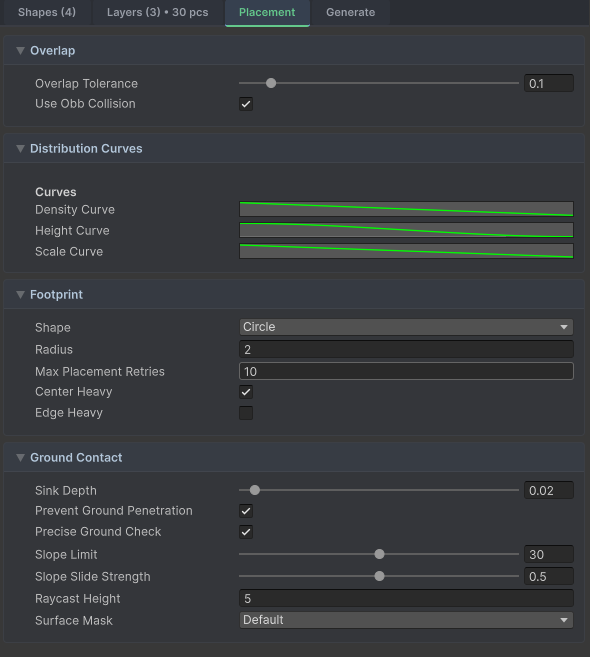 The Pile Profile's Placement tab showing footprint shape, ground contact, overlap, and slope settings.
7. Distribution Curves
Three AnimationCurve fields control how pieces are distributed (defined in the Pile Profile):
Density Curve
- •X axis: Distance from center (0 = center, 1 = edge)
- •Y axis: Probability of placement (0 = never, 1 = always)
- •Default: Higher density at center, tapering to edges
Height Curve
- •X axis: Distance from center
- •Y axis: Maximum height at that distance
- •Default: Tallest at center, lower at edges (natural pile shape)
Scale Curve
- •X axis: Distance from center
- •Y axis: Scale multiplier
- •Default: Larger pieces at center, smaller at edges
The Distribution Curves card is visible in the Generator's Generation tab even without using local overrides, and can be edited inline.