Presets & Tools
18. Shape Presets & Quick Preset Mode
Shape Presets
Shape Presets are reusable ScriptableObject shape definitions that can be shared across multiple profiles.
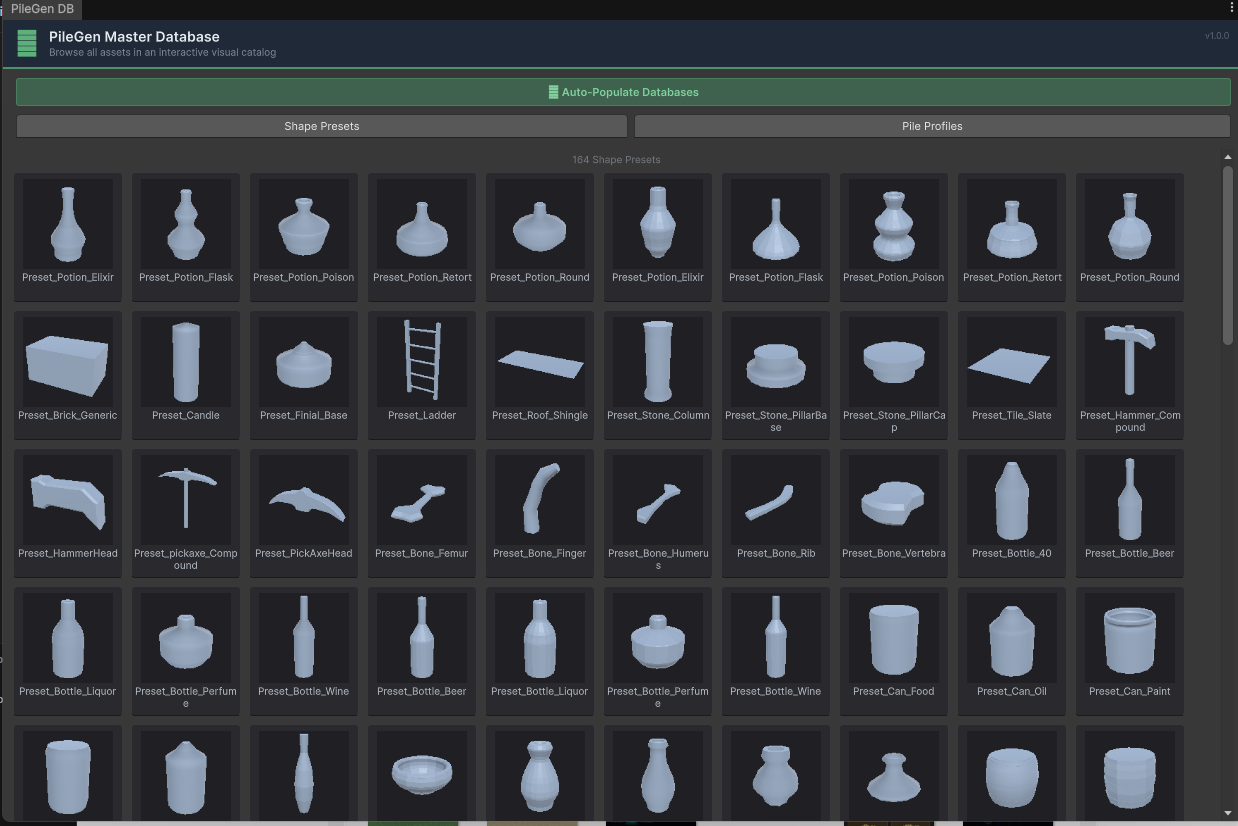 The Shape Preset Browser showing all built-in presets organized by category with 3D previews.
Creating a Shape Preset
- •
Assets > Create > PileGen > Shape Preset - •Configure the shape rule (primitive, size, deformation, etc.)
- •Save the asset
Using in a Shape Rule
In a Shape Rule, set Base Primitive to Preset and assign the Shape Preset asset. This lets you build a library of reusable shapes and reference them by name across all your profiles.
Built-in Shape Presets
Located in Assets/HLS/PileGen/Data/ShapePresets/, organized by category.
Quick Preset Mode
Assign a Shape Preset directly to the Generator's Quick Preset slot (no full Profile required). PileGen builds a temporary single-shape profile on the fly using the preset's settings.
This is the fastest way to:
- •Test what a new shape preset looks like in a pile
- •Generate a simple single-type scatter without creating a full profile
- •Prototype with a preset before investing in a full PileProfile
In Quick Preset mode, the Generator's Biome & Shading card shows the preset's assigned biome for live editing.
19. Profile Preview
The Pile Profile inspector includes an interactive 3D preview.
Using the Preview
- •Select a Pile Profile asset
- •The Generate tab shows a real-time 3D pile preview
- •Controls:
- •Left-click + drag — Orbit the camera
- •Scroll wheel — Zoom in/out
- •1:1 button — Show full piece count from the profile
- •Reduced button — Show only 10 pieces (faster preview)
- •Refresh button — Force regenerate the preview
The preview auto-updates when you change profile settings.
20. Built-in Presets
PileGen ships with 30+ ready-to-use pile profiles in Assets/HLS/PileGen/Data/Presets/:
| Category | Presets |
|---|---|
| Natural | Rocks, Fallen Leaves, Twigs & Branches |
| Construction | Bricks, Wood Planks, Roof Shingles, Tiles & Slate |
| Storage | Crates, Pallets, Cardboard Boxes, Barrels |
| Books | Books (stacked) |
| Bottles | Glass Bottles, Glass Bottles (High Detail), Alcohol Bottles |
| Kitchen | Kitchen Glassware, Kitchen Jars, Kitchen Storage |
| Cans | Soda Cans, Tin Cans, Cans & Tins |
| Industrial | Metal Pipes, Metal Buckets, Buckets, Industrial Containers |
| Fantasy | Alchemy Potions, Temple Pottery, Pharmacy Vials, Candles |
| Furniture | Chairs, Tables, Broken Furniture |
| Mixed | Debris, Mixed Junk, Generic Utility Containers |
| Architectural | Pillars & Columns, Vases & Pots |
Each preset comes with a matching pre-configured material.
24. Scene Manager
Open via PileGen > Scene Manager from the menu bar. Lists all PileGenGenerator components in the current scene.
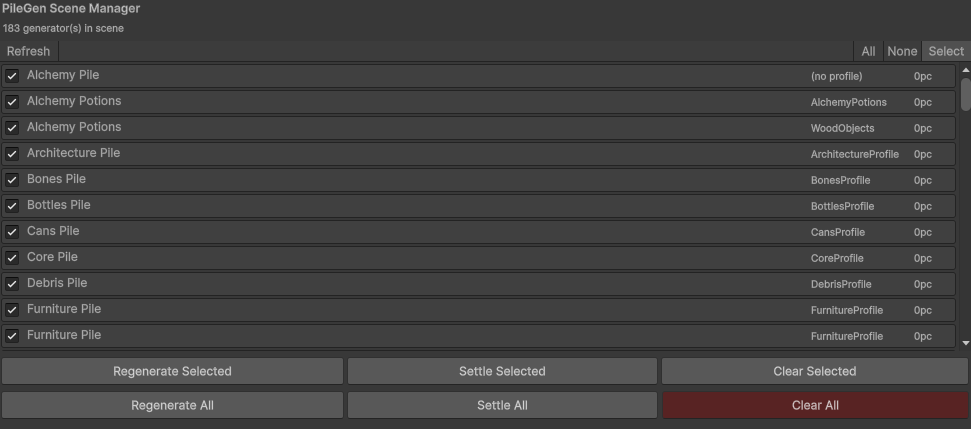 The Scene Manager window listing all generators with piece counts, profile names, and batch actions.
Features
- •View all generators with piece counts and profile names
- •Regenerate All — batch regenerate every pile in the scene
- •Settle All — batch settle every pile
- •Navigate to any generator by clicking its entry
- •Enable/disable individual generators